Draw Cartoon - AR Sketch App
- 4.5
- Rating
- 10.00M
- Installs
- Free
- Price
 Analysis by App-foxy
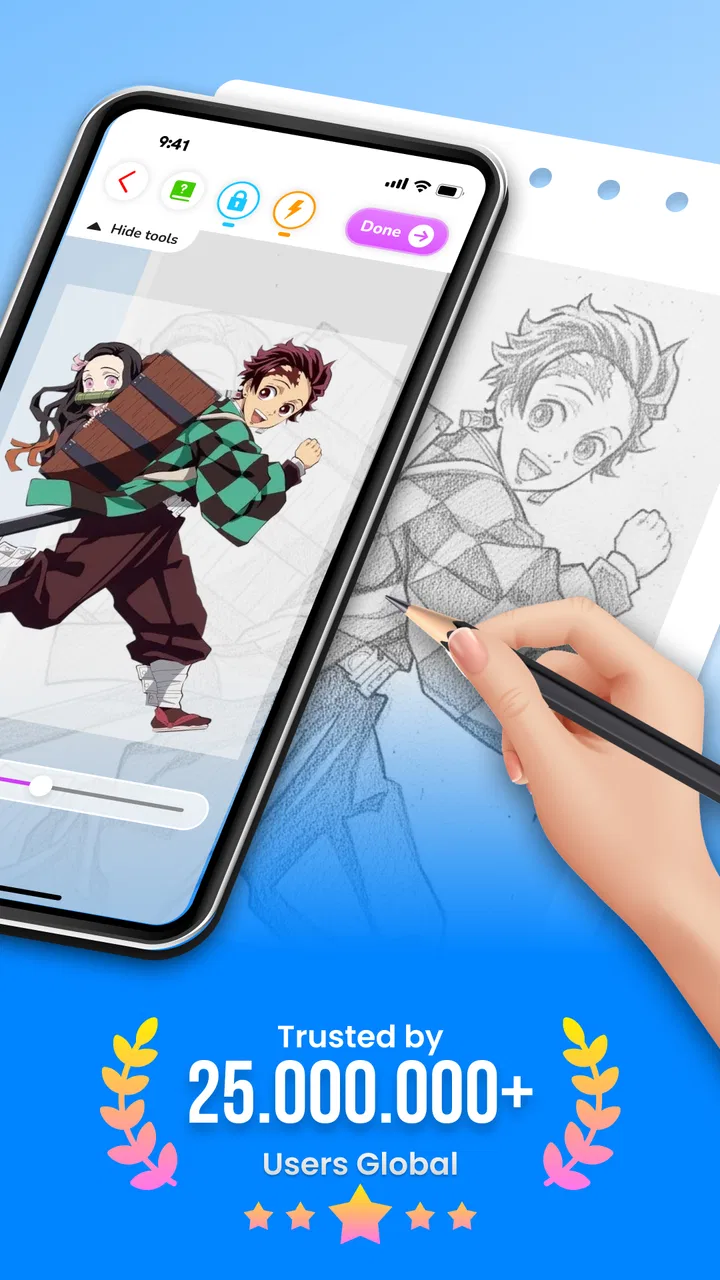
I approached Draw Cartoon - AR Sketch App as a practical drawing companion rather than a replacement for a full digital art studio. It belongs to the Art & Design category, is free to use, and is aimed at making cartoon drawing more approachable through AR sketching, tracing, and painting. The basic idea is easy to understand: use a visual guide to help place an image on paper, then add your own lines, color, and personality.
That sounds simple, but the distinction matters. This is not the kind of app I would choose for advanced illustration, layered production work, or precise professional editing. I see it as a bridge between a reference image and a physical drawing surface. For someone who has always wanted to draw a character but struggles with proportions, that bridge can be genuinely useful.
Braly JSC presents the app as suitable for Everyone, and that matches the approachable concept. It has also attracted a large audience, with over ten million installs and an average rating of 4.1 from around 49 thousand ratings. Those figures suggest broad interest, although they do not tell me whether every user will enjoy the same workflow. In my experience, the value depends heavily on whether you want guided drawing or independent digital creation.
You May Also Like

 Pandora - Music & Podcasts
Pandora’s Music Is Easy to Start, but Harder to Recover
Pandora’s strength is its low-effort path from a seed to a station. Its weak spot is how much confidence it asks you to place in connection, setup, and quiet recovery.

 8 Ball Pool
 Is Built on Rivalries, Rematches, and Routine
A close look at the rivalries, rematches, shared routines, and unanswered safety questions that turn a quick pool match into a persistent mobile community.

 Samsung Music
’s Quiet Strength Is Playing What You Already Own
Its reach comes less from spectacle than from dependable access to a personal library. That simplicity is both the app’s strongest retention engine and its ceiling.

 AccuWeather: Weather Radar
AccuWeather Review: A Quick, Clear Forecast for Everyday Decisions
For everyday plans, the best forecast is the one you can understand quickly. AccuWeather makes rain timing, radar, and local conditions easy to act on, with a few trade-offs.

 Hill Climb Racing
Why Hill Climb Racing Still Turns Crashes Into One More Run
A tiny car, a bumpy hill and one more upgrade: Hill Climb Racing keeps resurfacing because its simple chaos makes every near-miss feel personal.

 AliExpress - Shopping App
AliExpress Makes Global Shopping Feel Personal, but Shoppers Bear the Risk
AliExpress turns a global marketplace into a pocket-sized discovery engine. Its reach is useful, its shopping loop compelling, and its trade-offs easy to miss.
More From Our News Desk
View All News


How the AR sketching workflow feels in everyday use
The most useful way to understand this app is to imagine a normal drawing session. I choose a cartoon-style subject, prepare a sheet of paper, position the phone so the camera view can guide my hand, and follow the visible reference while sketching. The phone is doing the viewing and alignment work; the paper remains the place where the finished drawing takes shape.
That arrangement changes the experience compared with drawing directly on a touchscreen. I can use familiar pencils, markers, or colored pens, and the result feels like a real handmade illustration. At the same time, the visual guide reduces the intimidating blank-page problem. I do not have to estimate every proportion from memory before making the first mark.
The key is to treat the AR overlay as a guide, not as a machine that completes the drawing for me. If I rush, hold the phone at an awkward angle, or move the paper during the session, the relationship between the reference and my marks becomes less reliable. A stable setup makes a noticeable difference. I would place the phone on a stand or against something solid, leave enough room for my drawing hand, and test the framing before committing to detailed lines.
The strongest result comes from using the app as a tracing coach rather than expecting automatic artwork. That approach leaves room for personal choices. I can simplify a complicated shape, change the expression, alter the colors, or deliberately make the lines looser. The guide helps with structure, while the final style still comes from me.
A better setup for cleaner drawings
One practical improvement is to begin with a light construction sketch instead of immediately outlining everything. I would first mark the main head shape, body direction, and large features. After checking that the proportions look right, I would strengthen the important contours and add smaller details. This two-pass method is less frustrating than trying to create a finished line in one movement.
Lighting also matters. A bright, even workspace makes the paper easier to read and helps me see whether the guide is landing where I expect. Strong glare or a dark room can make the camera view uncomfortable and distract from the drawing itself. This is not a flaw unique to the app; it is simply part of working with a phone camera and a physical page.
I would also avoid placing the paper too close to the edge of a desk. A small accidental shift can affect the entire composition. For a quick doodle, that may not matter. For a birthday card or a drawing intended to be colored carefully, it is worth taking a minute to stabilize the setup first.
Another useful habit is to keep the first attempt small. A simple face, animal, or single character gives me time to learn how the overlay behaves. Starting with a crowded scene creates too many opportunities for alignment problems and makes it harder to tell whether the difficulty comes from the app or from the subject.
Where tracing helps, and where it stops helping
Tracing is especially helpful for beginners who understand what they want to draw but cannot yet judge spacing. It can also help children practice basic shapes, families working on a shared craft project, or anyone making a quick illustration for a card, notebook, poster, or classroom activity. I like that the physical result can be kept, colored, or displayed without needing to export a finished digital file.
There is a trade-off, though. If I copy every line mechanically, I may produce a recognizable picture without learning much about why the forms work. To get more lasting value, I would use the guide once, then try the same subject again with less assistance. A third attempt from memory can reveal which shapes I actually understood. That makes the app more than a shortcut; it becomes part of a simple practice routine.
For experienced artists, the appeal is narrower. The app may still be useful when I want a fast physical reference or a playful way to transfer a cartoon idea onto paper. However, artists who need layers, masks, brush customization, non-destructive editing, or exact canvas control will probably be more comfortable in a dedicated drawing app. A conventional digital art tool is better when the final work must remain editable and production-ready.
Painting adds a different kind of value
The painting side of the experience is most appealing after the outline is complete. Coloring a drawing on paper gives the activity a slower, more tactile rhythm than filling areas on a screen. I can experiment with bold cartoon colors, add shading, or intentionally leave parts uncolored for a sketchbook effect.
I would not expect the app to replace a full coloring or illustration program. Its role is to help me get an image onto the page and then support the creative process around it. The actual quality of the result still depends on the paper, tools, hand control, and time I am willing to spend.
A useful workflow is to decide on a limited color plan before starting. Cartoon drawings can become muddy when too many strong colors compete in a small space. Choosing a main color, an accent, and a darker detail color often produces a cleaner result than reaching for every marker at once. This is a creative tip rather than an app feature, but it fits the way this particular tool encourages physical drawing.
Trust, controls, and moments that deserve attention
Because the app uses AR sketching, the camera is central to the experience. That makes privacy awareness important even when the creative task feels harmless. I would use it in a clear workspace and pay attention to what appears in the camera view. A desk with personal documents, children’s faces, addresses, or other private material is not the right background for experimenting with an art tool.
I do not treat a camera-based drawing app as automatically unsafe, but I also do not give it more access than the task requires. Before settling into regular use, I would review the permission prompts shown by my device and the app’s available privacy information. If a permission does not seem connected to drawing, I would pause and decide whether it is necessary for the experience I want.
The same caution applies to account controls. I prefer trying an app first without creating an account when that is possible, especially for a simple creative activity. If a sign-in screen appears, I would read the choices rather than tapping through automatically. I would also check whether the app offers a clear way to manage or remove an account before entering personal details.
These checks are particularly useful for families. The age rating is Everyone, which makes the app approachable for shared use, but an age label is not a substitute for supervision or device-level controls. I would help a child understand when the camera is active, keep the phone pointed only at the drawing area, and make sure they know not to share personal information through any visible account or sharing option.
Data-sensitive moments can appear outside the actual sketching screen. They may include permission requests, sign-in prompts, advertisements, purchase screens, cloud-related options, or a request to save and share a creation. I would read each screen in context instead of assuming that every button is part of the drawing process. The safest habit is simple: grant only what I understand and use only the controls I actually need.
That approach does not make the app inconvenient; it makes the user experience more deliberate. I can still enjoy the creative side while keeping the phone pointed at a blank, controlled surface. If I am drawing in a public place, I would be even more careful, since the camera could otherwise capture people or surroundings unintentionally.
What the free model means for a practical user
The app is free, which lowers the barrier to trying it. I can explore the drawing workflow without first committing money to a specialized tool. That is a real advantage for a beginner who is unsure whether AR-assisted sketching will become a regular hobby.
Free apps can still include interruptions or optional commercial screens, so I would judge the experience over several sessions rather than assuming that the first launch represents everything. If an advertisement appears while I am trying to align a drawing, that could be more disruptive than an ad between casual activities. For a child, I would also check the device before handing it over, because an accidental tap can be more likely when the user is focused on the artwork.
The current version is 1.0.32 and runs on Android 7.0 or later. That makes compatibility fairly broad for Android users with older supported devices, but camera-based experiences can still feel different depending on the phone’s display, camera behavior, performance, and physical setup. I would not judge the app solely by whether it installs; I would test whether the overlay remains comfortable to use on the particular device.
One limitation I would keep in mind is that AR drawing is inherently dependent on the phone’s position. A large screen may be easier to see, while a small phone can be more portable but harder to follow during detailed work. The app cannot remove that physical compromise. If I want a relaxed, hands-free drawing session, a stable stand is almost as important as the software.
Who should choose it, and who should look elsewhere
I would recommend trying this app if you are new to drawing, enjoy cartoon subjects, or want a guided way to create something on paper. It is also a good fit for short creative activities: a rainy afternoon project, a handmade card, a family drawing session, or a quick exercise before starting a larger sketchbook piece.
I would be more cautious about recommending it to someone who wants a serious digital art workspace. If your priorities are pressure-sensitive brushes, extensive layers, vector editing, animation, or a carefully managed export workflow, a dedicated art application will serve you better. The physical-paper approach is the point here, not an inconvenience to be ignored.
I would also skip it when I need exact technical drafting. Cartoon tracing can tolerate a little looseness, but architectural plans, product diagrams, and precision illustrations require tools designed around measurement and repeatable editing. This app is about accessible visual practice, not technical accuracy.
For a realistic everyday example, imagine wanting to make a custom card for a friend but feeling uncomfortable drawing a character from scratch. I would use the app to establish the pose and outline, transfer the main shapes onto the card, then put the phone aside and personalize the clothing, colors, message, and background. The result would feel more personal than printing an image, while the guide would prevent the character from becoming unrecognizable.
My measured recommendation
After looking at the workflow as both a drawing tool and a camera-based app, I see Draw Cartoon - AR Sketch App as a friendly entry point rather than a complete art solution. Its best quality is that it turns “I cannot draw this” into “I can start with the structure and improve it.” That small change can be enough to make creative practice feel possible.
The app works best when I control the environment, keep the phone steady, protect the camera view from private material, and treat the guide as temporary support. Those habits also make the limitations easier to manage. The experience is less suitable when I need deep editing, professional file control, or a completely hands-off process.
Braly JSC has made a free Art & Design app with an Everyone rating and a clear focus on cartoon sketching, tracing, and painting. I would try it first with a simple subject and a small piece of paper, then decide whether the guided method fits my style. If you want a low-pressure way to turn a phone reference into a handmade cartoon, it is worth exploring; if you want a full digital studio, choose a more specialized alternative.
FAQs for Draw Cartoon - AR Sketch App
01What is Draw Cartoon - AR Sketch App and how does it work?
Draw Cartoon - AR Sketch App is an innovative application that allows users to create cartoons using augmented reality. By utilizing your device's camera, the app overlays drawing tools onto your surroundings, enabling you to sketch and animate directly in real-time. This interactive approach makes drawing fun and engaging for users of all ages.
02Is Draw Cartoon - AR Sketch App suitable for beginners?
Yes, Draw Cartoon - AR Sketch App is designed to be user-friendly and accessible for beginners. It features intuitive controls and provides tutorials to help new users understand the basics of drawing and animation. Whether you're a novice or have some experience, you'll find the app easy to navigate and use.
03What devices are compatible with Draw Cartoon - AR Sketch App?
Draw Cartoon - AR Sketch App is available for both Android and iOS devices. To ensure optimal performance, your device should support augmented reality capabilities, which typically requires a recent operating system and a compatible camera. Always check the app’s requirements on the download page for specific compatibility details.
04Does Draw Cartoon - AR Sketch App require an internet connection?
While Draw Cartoon - AR Sketch App can be used offline for sketching and drawing, certain features such as sharing your creations or accessing cloud-based storage may require an internet connection. It's recommended to explore the app’s functionalities to see which features are available offline.
05Are there in-app purchases in Draw Cartoon - AR Sketch App?
Yes, Draw Cartoon - AR Sketch App offers in-app purchases. These may include additional tools, effects, and content packs that enhance your drawing experience. While the basic features are free, purchasing these extras can provide more options and creativity for dedicated users looking to expand their artistic capabilities.
Pros
- Easy-to-use interface for beginners.
- Wide variety of cartoon styles available.
- Augmented reality feature enhances creativity.
- Regular updates with new features.
- Offline mode for sketching anywhere.
Cons
- Limited export options for completed sketches.
- Some features require in-app purchases.
- Occasional lag in AR mode.
- Ads can be intrusive at times.
- No collaborative sketching option.

Draw Cartoon - AR Sketch App
Gallery